
Explained: How to Create a QR Code for a Google Form?
A QR code is a simple way to let people access your form quickly using their smartphones. Instead of sharing long links or email invites, you can give people a code they can scan, leading them directly to your form. Whether you’re gathering responses for a survey, collecting RSVPs, or taking feedback, generating a QR code makes the process smoother and faster for you and your audience. This guide will help you with the steps to create a QR code for a Google Form easily.
Steps to Create a QR Code for a Google Form
Fortunately, creating a QR code for a Google Form is pretty straightforward. Here is how to do it:
- Open Your Google Form: Visit the Google Forms website and open the form you want to share.
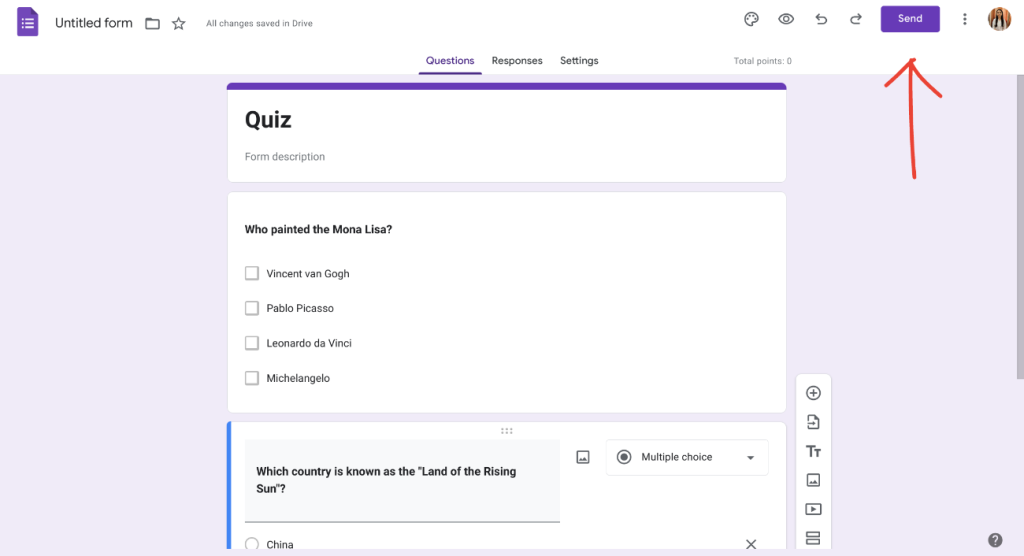
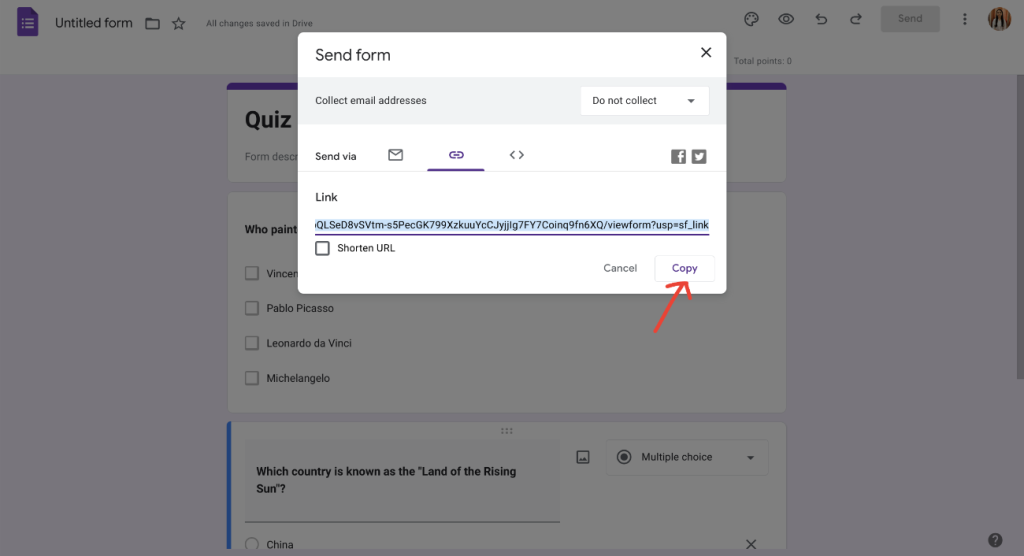
- Get the Link to Your Form: Look for the “Send” button at the top right corner of the page and select the link icon. Then, click “Copy” to save the link to your form.
- Use a QR Code Generator: Open a QR code generator website. Some popular options are QR Code Generator and QRStuff. Paste the link to your Google Form there.
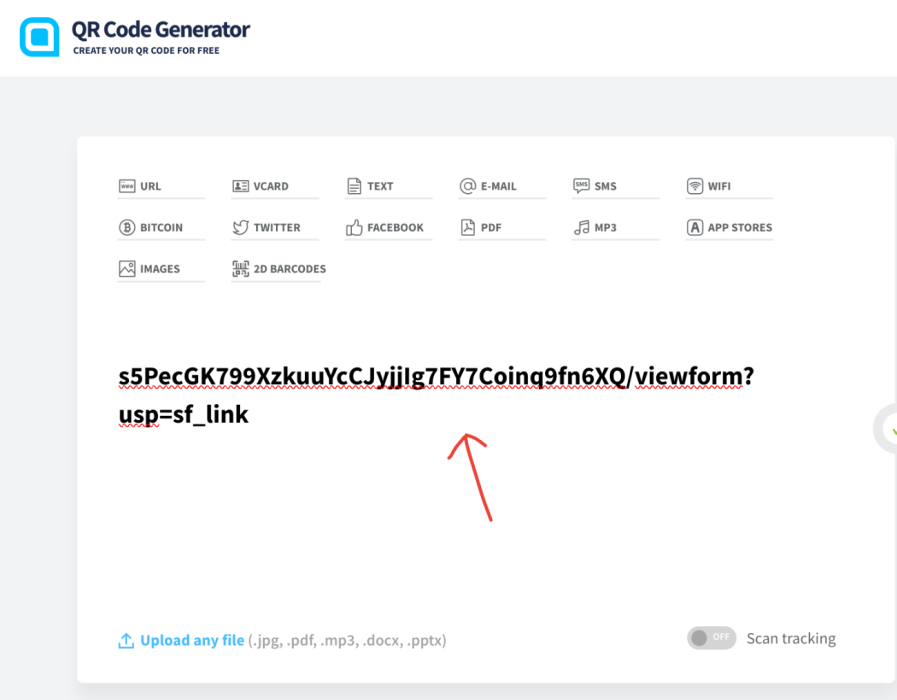
- Generate the Code: Click the button to generate the QR code. This may be labeled as “Create QR Code” or something similar.
- Download the QR Code: Once the QR code appears, you can download it and save it to your device.
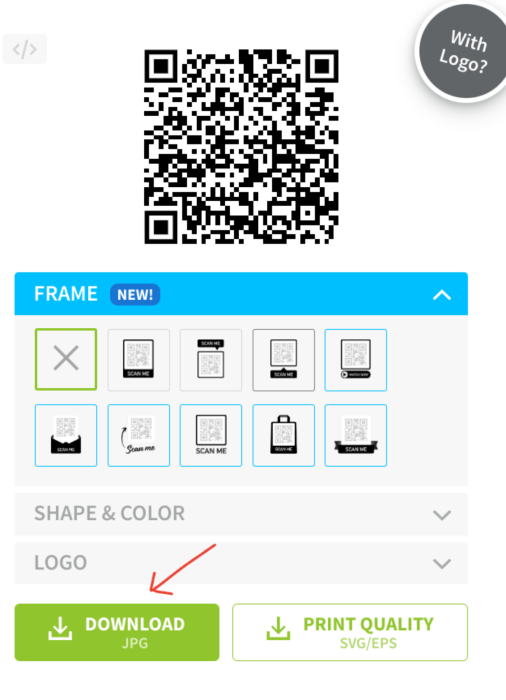
Follow the steps to generate the code so people can easily scan it and access your Google Form. This will make it easy for others to respond!
Related Reads
TNG – Latest News & Reviews
