
How To Restart a Frozen Apple Watch?
An Apple Watch works perfectly well for everyday chores, but it may occasionally freeze or fail to respond to touch commands. There are various reasons your Apple Watch might freeze or fail to respond. One of the most common causes is a fault in any application. Software bugs caused by new updates could also be responsible for causing such problems. On the other hand, having a critically low battery life can lead to the same issue. This guide explains how to restart a frozen Apple Watch and what to do if the issue persists.
Restart Your Apple Watch Normally
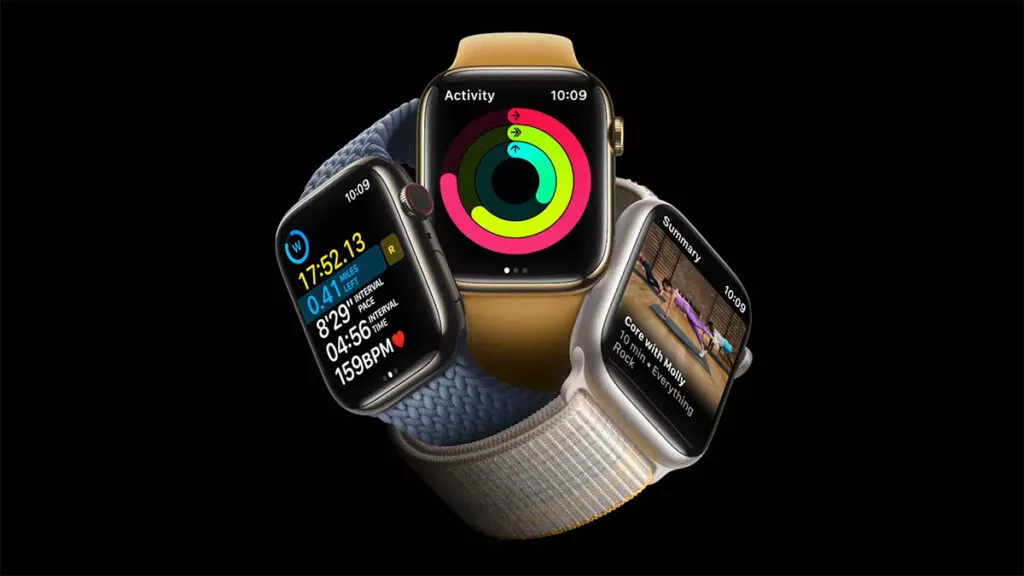
If your Apple Watch is responding normally, you can restart it using the built-in power options. Follow these steps:
- Hold down the side button until the power options are displayed.
- Select the power icon in the top-right corner of the screen.
- Slide the Power Off slider to switch the device off.
- Wait for a while before releasing the side button.
- Finally, press the side button again until the Apple logo appears.
- Another option is to go to Settings > General > Shut Down and follow the on-screen instructions.
Force Restart a Frozen Apple Watch

If your Apple Watch is frozen and stops responding completely, try a force restart using these steps:
- Press the Digital Crown and side button simultaneously.
- Press and hold these two buttons for 10 seconds straight.
- Look out for an Apple logo appearing on your screen.
- Let go once you see that logo.
- Let the device boot up normally.
- Check whether the issue persists after a restart.
Unpair and Pair Your Apple Watch Again
If the Apple Watch freezes even after you have restarted your device, unpairing and then re-pairing it might resolve the issue. Here’s how you can do this:
- Open the Watch app on your iPhone.
- Tap All Watches to view connected devices.
- Select the Apple Watch you want to unpair.
- Press the information icon next to the watch.
- Tap Unpair Apple Watch and confirm your choice.
- When the process finishes, pair the watch again and restore your backup.
If none of the above work, there are several more things you can try. Make sure that your Apple Watch has enough battery power; maybe our watch just stopped working. It is also very important that you do not forget to update both your Apple Watch and the corresponding smartphone to prevent potential issues caused by outdated software. If your problem persists and your device freezes on the Apple Watch logo, you might need to seek professional assistance.
TNG – Latest News & Reviews